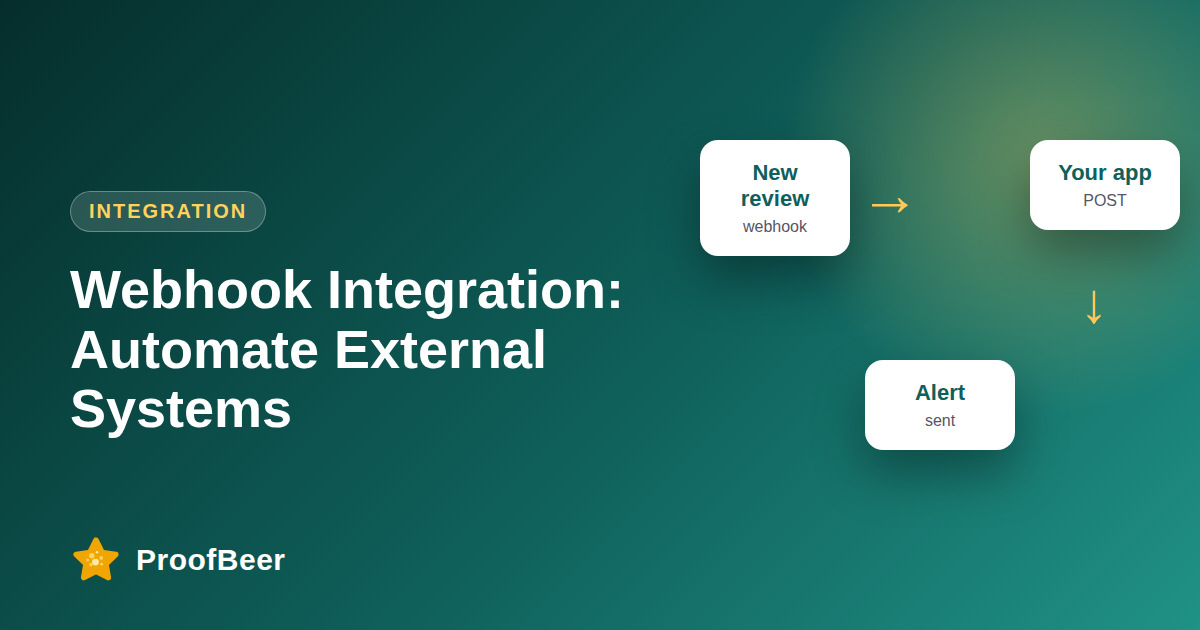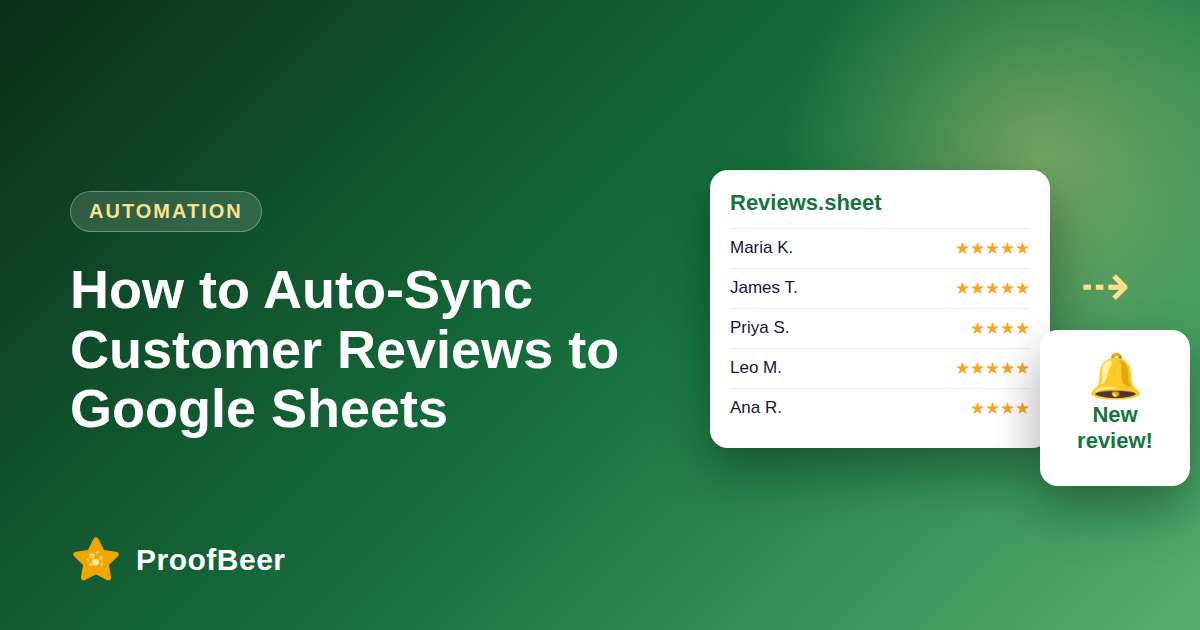
To get real-time review alerts in Slack, create an incoming webhook for a channel, connect it to your review platform or an automation tool, and choose which fields to show: name, rating, text, source and link. Route five-star reviews to a marketing channel and one or two-star reviews to an urgent support channel, and confirm whether ProofBeer has a native Slack integration.
- Slack alerts get new reviews in front of the team quickly, so replies happen in hours instead of days.
- An incoming webhook gives you a private URL that accepts a JSON message and posts it to one channel.
- Include rating, a short excerpt, source, reviewer display name and a link to reply, so people can act without hunting.
- Route good and bad reviews to different channels, so urgent problems do not get buried under praise.
- Agree on an owner and a reply service level, such as same business day for low ratings.
- Check whether ProofBeer offers a native Slack integration, and if not, use webhooks or an automation tool such as Zapier or Make.
- Protect privacy by posting only the fields the team needs, in channels with the right members.
- Treat the webhook URL like a secret, because anyone who has it can post to your channel.
Why do Slack alerts help?
- Teams already live in Slack, so a review alert reaches the right people without anyone opening another dashboard.
- Fast replies to negative reviews show future customers that you care and may prevent a problem from growing.
- Public praise in a channel lifts morale and gives sales and marketing fresh quotes.
- Shared visibility helps support, product and marketing see the same customer voice.
- Alerts create a record of who saw each review and when it was handled.
How do you set it up in three steps?
- Step one: in Slack, create an app or use the incoming webhooks feature, choose a channel and copy the webhook URL.
- Step two: in your review tool or an automation platform such as Zapier or Make, add a step that sends a message to that URL when a new review arrives.
- Step three: map the fields, send a test review and check that the message looks right.
- Store the webhook URL securely, and rotate it if it leaks.
- Check the current Slack documentation, because menu names and limits can change.
What are smart routing rules?
- Five-star reviews go to a marketing or wins channel so the team can thank customers and request permission to quote them.
- Four-star reviews go to a general customer channel for light follow-up.
- One and two-star reviews go to an urgent support channel with a mention for the on-call person.
- Three-star reviews go to the product channel, since they often hold useful detail.
- Reviews that mention keywords such as refund or safety can trigger extra alerts.
What message templates work well?
- Include a header with the rating as stars and the source, such as Google or website.
- Show a short excerpt of the text, trimmed to a few lines, with a link to the full review.
- Add a reviewer display name or initials and the date.
- Add buttons or links for reply, assign and mark as handled, if your setup supports them.
- Keep the message compact so busy channels remain readable.
How do you set ownership and a reply SLA?
- Name an owner for each channel, such as support for low ratings and marketing for five-star reviews.
- Set a reply target, for example within one business day for negative reviews, and track it.
- Use a thread or emoji reaction to show that someone is handling the review.
- Keep a backup owner for holidays and sick days.
- Review response times monthly and adjust staffing if the target is missed.
How do you govern privacy?
- Post only what the team needs, and avoid sending emails, phone numbers or order details into a busy channel.
- Limit membership of channels that show customer names and comments.
- Set a retention policy for Slack messages in line with your company rules.
- Make sure replies to reviewers follow your public response policy and do not reveal private information.
- Remember that review text can be personal data, so treat Slack alerts accordingly.
Step-by-step: how to do this with ProofBeer
Decide which channels you need, such as wins, support and product, and who owns each.
In Slack, create an incoming webhook for each channel and copy the URL.
Find out whether ProofBeer has a native Slack integration, or choose Zapier or Make as the connector.
Configure the trigger for new reviews and map rating, text, source, name and link into a message.
Add routing rules so that low ratings and high ratings go to different channels.
Send test reviews and confirm that the format and mentions work as intended.
Agree a reply SLA and a way to mark reviews as handled.
Review alert volume and response times monthly and adjust rules to reduce noise.
Common mistakes to avoid
Metrics to track
Median time from new review to first reply.
Share of low-rated reviews handled within the agreed SLA.
Number of alerts per week and how many require action.
Percentage of five-star reviews with permission requested for quoting.
Number of webhook or automation failures per month.
Quick checklist
Examples and templates
'2 stars on Google. Late delivery and no update from the courier. Reviewer: J. M. Link: [review link]. Owner: support on call.'
'5 stars on our website: Setup took ten minutes. Please ask for permission to quote.'
5 stars to wins channel, 3-4 stars to product channel, 1-2 stars to urgent support channel with a mention
- Use threads for discussion so the channel stays readable
- Add an emoji reaction to show a review is being handled
- Review the rules every quarter
How ProofBeer Helps You Grow
Bring new reviews and feedback into one dashboard, and connect that stream to Slack through the available integration or an automation tool.
Help teams separate urgent low ratings from positive reviews so each gets the right follow-up.
Keep approved reviews and consent status in the same place, so wins posted in Slack can be turned into quotes safely.
Frequently Asked Questions
Can I get review alerts in Slack?
Yes, usually by creating a Slack incoming webhook and sending new review data to it through your review tool or an automation platform. Check whether ProofBeer has a native Slack integration before building anything.
What is a Slack incoming webhook?
It is a unique URL that accepts a JSON message and posts it to one Slack channel. Treat it as a secret, because anyone with the URL can post to your channel, and rotate it if it leaks.
How do I stop alerts from becoming noise?
Route by rating, mention only the people who need to act and trim message text to a short excerpt. Review alert volume monthly and merge or mute channels that nobody uses.
Should I send negative reviews to a separate channel?
Yes, an urgent channel with a named owner helps ensure a quick, thoughtful reply. Keep membership small, because those messages may contain customer details and strong language.
Can I reply to the review from Slack?
That depends on your setup. Many integrations provide a link to open the review, and some tools support actions inside Slack. Confirm what your ProofBeer or automation setup offers before promising it to the team.
What reply time should we target?
Choose a target you can meet consistently, such as the same business day for low ratings and within two days for positive ones. Track actual response times and adjust the target if staffing changes.
Conclusion
Slack alerts make review handling part of your team's normal day. Set up a webhook, route by rating, assign owners and a reply target, and keep customer data limited to what your team needs.
- Slack API documentation - incoming webhooks
- Zapier or Make Slack integration docs