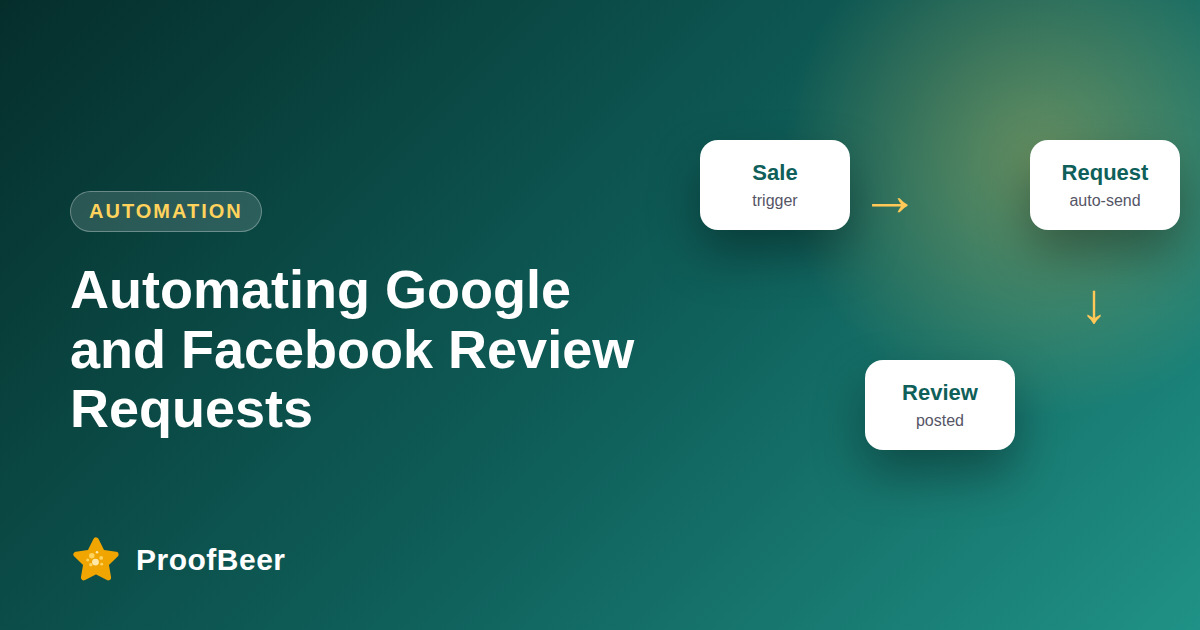
Automate review requests by connecting your review tool to your Google Business Profile and Facebook Page, setting triggers such as a completed purchase or appointment, sending personalised emails or texts with direct review links, and capping how often each customer is contacted. Ask every eligible customer, follow consent rules, and track requests, completions and rating mix so you can improve over time.
- Automation makes sure every eligible customer is asked at a sensible moment, without relying on staff to remember.
- Common triggers are a completed purchase, a delivered order, an ended appointment or a resolved support ticket.
- Direct links to your Google and Facebook review pages reduce steps, so more customers can finish a review.
- Cap the number of messages per customer and stop the sequence after a review or an opt-out.
- Do not send requests only to customers you expect to be happy, because selective asking is review gating and is against platform policy.
- You need appropriate consent and a lawful basis for email and text messages, which differ by region.
- Check how your tool connects to Google and Facebook, because API access and permitted features change over time.
- Track results by channel and refine your templates and timing every month.
Why automate review requests?
- Manual asking is inconsistent, and busy teams often forget to do it.
- Automation applies the same rules to every customer, which supports fairness and compliance.
- It can send a request at the right moment, based on real events in your systems.
- It frees staff to focus on service and on replying to the reviews you receive.
- It produces data that shows what works, such as completion rates by channel.
What triggers and channels should I use?
- Use a purchase confirmation, delivery event, completed appointment or closed support ticket as the trigger.
- Choose channels your customers already use, such as email, text message or in-app notices.
- Send a short, branded message with a direct link to the review page.
- Match the delay to the product type, as explained in our guide to timing review requests.
- Avoid messaging customers who have an unresolved complaint until the issue is closed.
How do I connect Google and Facebook?
- For Google, use your verified Google Business Profile and its official review link so customers land on the correct page.
- For Facebook, use your Page and the official recommendations or reviews link available to your Page.
- Check whether your tool uses official integrations or only generates links, and confirm which features it supports.
- Keep admin access under the right accounts so connections do not break when someone leaves.
- Test each link on a phone before you launch.
How do I write templates and keep requests respectful?
- Use a short, friendly message with the customer's name and what they bought.
- Say that honest feedback is welcome and do not ask for a specific rating.
- Add a clear opt-out option in each text or email.
- Cap contact frequency, for example one request and up to two reminders for each purchase.
- Review message wording regularly to match your brand voice and any legal guidance.
What compliance issues should I know?
- Do not use review gating by sending only satisfied customers to public review sites.
- Get consent for email and text according to local law, such as GDPR, CAN-SPAM or TCPA, as applicable to you.
- Do not send incentives for reviews on platforms that prohibit them.
- Record when and how each message was sent, and honour opt-outs promptly.
- Take professional advice for your region, because this article is general information.
Step-by-step: how to do this with ProofBeer
Connect your Google Business Profile and Facebook Page to your review tool, or collect the official review links.
Define triggers, such as purchase completion, delivery or appointment end, and the delay for each.
Write email and text templates with a direct review link and a friendly opt-out line.
Set frequency caps and stop rules so customers are not contacted after responding or opting out.
Test the full flow with a few internal contacts on different phones and email apps.
Launch to all eligible customers, not only to those you think will be satisfied.
Monitor requests sent, completion rate and rating mix every week for the first month.
Optimise templates, timing and channels based on your own results.
Common mistakes to avoid
Metrics to track
Requests sent and delivered per week.
Completion rate by channel.
Rating distribution across Google and Facebook.
Median time from request to review.
Opt-out rate and complaint rate.
Quick checklist
Examples and templates
'Thanks for visiting. Would you share your honest feedback? Here is the link.'
'Hi Sam, thanks for choosing us. Review link: [link]. Reply STOP to opt out.'
send one day after appointment end unless a support ticket is open
- Keep a simple log of every message sent for audit purposes
- Never send a request to a customer who has already reviewed
- Refresh templates each season to avoid sounding repetitive
How ProofBeer Helps You Grow
Automate requests from purchase, appointment or support events and send direct review links with ProofBeer.
Connect Google and Facebook review links so customers can post where you want reviews to appear.
Use templates, frequency caps and analytics to keep requests respectful and measurable.
Frequently Asked Questions
Can I automate Google review requests?
You can automate sending requests that contain your official Google review link, using triggers from your own systems. Do not automate posting reviews on behalf of customers, and follow Google's policies on review solicitation.
Can I automate Facebook review requests too?
You can send requests that link to your Page's recommendations or reviews area. Feature availability can change, so confirm how your tool connects and what Facebook currently allows.
How often should I message a customer?
One request and up to two reminders for each purchase is a respectful pattern. Cap the total contacts per customer and stop as soon as they respond or opt out.
Is it okay to ask only satisfied customers?
No. That is review gating and platforms discourage it. Send the same request to every eligible customer, and offer private feedback only as an extra option alongside the public link.
Do I need consent to send automated texts?
Often yes. Rules such as TCPA in the United States and GDPR and ePrivacy laws in Europe set requirements for text and email marketing. Check the laws for your customers' locations and consult a legal professional.
What should I measure after setting up automation?
Track requests sent, completion rate, time to review, rating mix and opt-outs by channel. Compare changes over several weeks and adjust one variable at a time so you can see what drives improvement.
Conclusion
Automation makes review collection reliable and consistent. Ask every eligible customer, respect consent and frequency limits, and track what happens so each month your process gets a little
better.
- Google Business Profile - review link
- FTC Consumer Reviews and Testimonials Rule