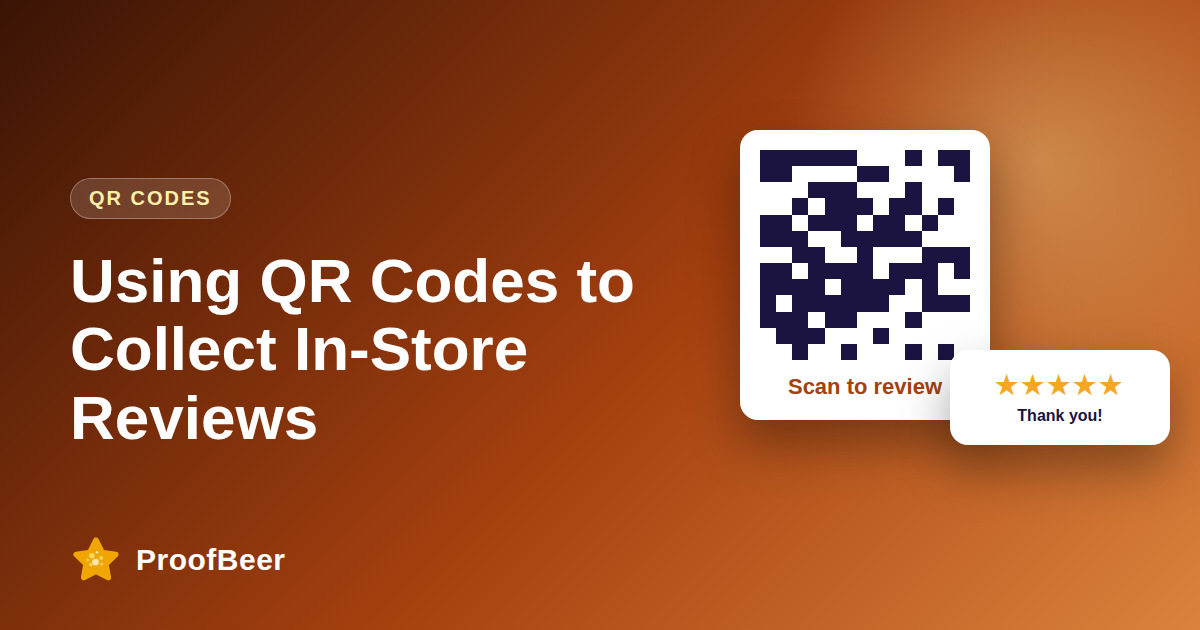
Use QR codes to collect in-store reviews by placing them where customers are ready to act, such as receipts, table tents, windows, shelf talkers and packaging, and linking them to a short mobile review form or your Google review link. Use dynamic codes with UTM tracking, print them large enough to scan, test them on several phones and train staff to mention them.
- A QR code turns leaving a review into a single scan, which suits customers who are still in the shop or have just paid.
- The best placements are those customers see at a natural pause, such as the receipt, the table, the counter and the packaging.
- Dynamic QR codes let you change the destination later and track scans without reprinting.
- The destination must load quickly on mobile and ask for as little effort as possible.
- A short line such as 'Scan to share your experience' tells people why the code is there and improves scans.
- Do not offer rewards for positive reviews, and follow platform and local rules if you offer any incentive for reviews at all.
- Test every printed code on several phones and in real lighting before it goes into production.
- Expected scan and completion rates vary a lot by business, so measure your own numbers instead of relying on generic benchmarks.
Why use QR codes for reviews?
- They remove typing and searching, so a customer can reach your review page in seconds.
- They capture feedback while the experience is fresh, which often produces more detailed reviews.
- They work offline in physical locations where email and text are not collected.
- They are cheap to produce and easy to update when you use a dynamic service.
- They give you location-level data when each site has its own code.
Where should I place QR codes?
- On receipts or invoices, where the customer is already reviewing the experience.
- On table tents or counter signs in restaurants, cafes and salons.
- On windows or door stickers so passers-by can see your reputation and leave a review after visiting.
- On packaging inserts and thank-you cards for products shipped to customers.
- On shelf talkers or product displays to collect feedback about specific items.
How do I set up and track the code?
- Choose a dynamic QR code service so the link can be updated and scans can be counted.
- Point the code to a short, mobile-friendly review form or to your Google review link.
- Add UTM parameters, such as utm_source=qr and utm_medium=receipt, so scans can be separated in analytics.
- Create a separate code or parameter for each location or placement to compare results.
- Keep a list of every code, where it is printed and the destination it uses.
How do I design the sign and the landing page?
- Use a clear headline, a short call to action and a code printed large enough to scan from a normal distance.
- Keep strong contrast between code and background and leave a blank margin around it.
- Add a friendly line such as 'Scan to share your experience' rather than demanding a rating.
- Send people to a page that loads in a couple of seconds and works with one thumb.
- Offer a simple way to give a short rating first and a comment afterwards.
What rules and etiquette should I follow?
- Do not ask for positive reviews only, and do not hide the code from people who might leave critical feedback.
- Check the policy of the platform where reviews will be posted, because some restrict asking for reviews at certain points or by certain methods.
- If you offer any incentive, disclose it and keep it independent of the rating.
- Train staff to mention the code politely without pressuring customers.
- Respect privacy by not collecting personal data you do not need.
Step-by-step: how to do this with ProofBeer
Choose three or four placements where customers pause, such as the receipt, the table and the packaging.
Generate dynamic QR codes and set the destination to your review form or Google review link.
Add UTM parameters or separate codes for each location so scans can be tracked.
Test every code on several phones, including older models, and in different light.
Print signs at a good size with a clear call to action and a margin around the code.
Train staff to mention the code in one friendly sentence.
Review scans, completions and ratings weekly for the first month.
Adjust placements, wording and the landing page based on your own results.
Common mistakes to avoid
Metrics to track
Scans per location and per placement.
Completion rate from scan to submitted review.
Reviews collected per week.
Average rating and rating distribution.
Share of scans that came from each placement.
Quick checklist
Examples and templates
'Enjoyed your visit? Scan to share your experience.'
utm_source=qr&utm_medium=receipt&utm_campaign=reviews
receipt in week one, table tents in week two, packaging inserts in week three
- Make the code at least large enough to scan from an arm's length away
- Keep the landing page under a couple of seconds on mobile data
- Never place a code where it could look like a payment code
How ProofBeer Helps You Grow
Create QR-friendly review forms that load fast on mobile and take under a minute to complete with ProofBeer .
Use ProofBeer analytics and UTM-tagged links to compare scans and completions by location .
Link directly to your Google review page from a ProofBeer form or link, so one scan can serve both purposes .
Frequently Asked Questions
Do QR codes really increase reviews?
They can, because they make leaving a review quick for customers who are already in your location. The effect depends on placement, wording and your service, so track scans and completions to see your own results.
Where is the best place to put a review QR code?
Choose spots where customers naturally pause, such as the receipt, table tent, counter or packaging insert. Test two or three placements and compare scans so you can keep the ones that work.
Should I use a static or dynamic QR code?
Dynamic codes are usually better for reviews because you can change the destination and see scan counts without reprinting. Static codes are fixed, which is risky if your review link ever changes.
Can I link the QR code directly to my Google reviews?
Yes, if you use your official Google review link. Many businesses instead link to their own short page first, which helps with tracking and lets you offer private feedback in addition to the public link.
Can I give a discount for scanning the code?
Be careful. Rewards for reviews can break platform rules and consumer protection laws, especially if tied to a positive rating. If you offer anything, disclose it, keep it independent of the rating and check each policy.
How big should a QR code be?
It should be large enough to scan comfortably from the distance where customers will hold their phone. As a rough guide, test it at the real distance and increase the size until older phones scan it instantly.
Conclusion
QR codes are a simple way to catch happy and unhappy customers in the moment and invite honest
feedback. Place them where people pause, track every code and keep the experience fast and fair.
- Google Business Profile - get your review link
- QR code best practices guides